Download AI Business Professional.AB-730.PassLeader.2026-11-26.60q.vcex
| Vendor: | Microsoft |
| Exam Code: | AB-730 |
| Exam Name: | AI Business Professional |
| Date: | Nov 26, 2026 |
| File Size: | 2 MB |
How to open VCEX files?
Files with VCEX extension can be opened by ProfExam Simulator.
Purchase
Coupon: TAURUSSIM_20OFF
Discount: 20%
Demo Questions
Question 1
You have several pages in Microsoft 365 Copilot related to the research you are doing for a new product.
You need to simplify your ability to have many different Copilot conversations about the pages.
What should you do first?
- Create a story.
- Add the pages to a notebook.
- Add the pages to a conversation.
- Download the pages locally.
Correct answer: B
Explanation:
While Microsoft 365 Copilot does not have a single "merge" button for multiple chat histories, you can effectively consolidate different conversations into a single entity using these primary methods: 1. Use Copilot Pages for Dynamic Consolidation Copilot Pages is the most robust way to build a single "source of truth" from multiple chats. Add Responses: Below any Copilot response, click the pencil icon to create a new page or the drop-down arrow to add the response to an existing page. Iterative Building: You can continue different chats and keep sending relevant outputs to the same page, effectively merging various threads into one organized document. *-> 2. Leverage Copilot Notebooks For projects requiring high-volume consolidation, Copilot Notebooks allow you to aggregate diverse sources. Aggregate Sources: You can pull in OneDrive files, SharePoint documents, and even specific chat snippets. Consolidated Output: Use a prompt like "Create an executive summary based on all references in this notebook" to generate one unified entity. Reference: https://techcommunity.microsoft.com/blog/microsoft_365blog/introducing-copilot-notebooks-a-whole-new-way-to-work-with-ai-in-onenote/4428626 While Microsoft 365 Copilot does not have a single "merge" button for multiple chat histories, you can effectively consolidate different conversations into a single entity using these primary methods:
1. Use Copilot Pages for Dynamic Consolidation
Copilot Pages is the most robust way to build a single "source of truth" from multiple chats.
Add Responses: Below any Copilot response, click the pencil icon to create a new page or the drop-down arrow to add the response to an existing page.
Iterative Building: You can continue different chats and keep sending relevant outputs to the same page, effectively merging various threads into one organized document.
*-> 2. Leverage Copilot Notebooks
For projects requiring high-volume consolidation, Copilot Notebooks allow you to aggregate diverse sources.
Aggregate Sources: You can pull in OneDrive files, SharePoint documents, and even specific chat snippets.
Consolidated Output: Use a prompt like "Create an executive summary based on all references in this notebook" to generate one unified entity.
Reference:
https://techcommunity.microsoft.com/blog/microsoft_365blog/introducing-copilot-notebooks-a-whole-new-way-to-work-with-ai-in-onenote/4428626
Question 2
You are creating a custom analytics agent in the Microsoft 365 Copilot app. The agent will use Microsoft Excel files that contain sales data as knowledge.
You need to ensure that the agent can create visualizations, perform mathematical operations, create aggregations, and analyze the data in the files.
What should you add to the agent?
- a suggested prompt
- code interpreter
- image generator
- a template
Correct answer: A
Explanation:
To get the most out of a custom analytics agent in Microsoft 365 Copilot for Excel sales data, use a structured prompt that defines the goal, context, and specific output format. For the best results, ensure your data is formatted as an Excel Table. Suggested Comprehensive Prompt "Analyze the sales data in this file to identify the top 5 performing products by total revenue and regional growth. Perform a mathematical operation to calculate a new column for 'Profit Margin' (Revenue minus Cost), then aggregate the total sales and average profit margin by 'Sales Representative' and 'Region.' Finally, create a professional dashboard on a new sheet featuring a bar chart for product revenue and a line graph showing monthly sales trends over the last 12 months." Breakdown of Prompt Capabilities Visualizations: Ask for specific chart types (e.g., "Visualize this as a bar chart" or "Create a line graph") to help spot trends. Mathematical Operations: Request new columns based on existing data (e.g., "Create a column for the difference between 'Projected' and 'Actual' sales"). Aggregations: Use natural language to summarize data (e.g., "Calculate the total sales by region") or generate PivotTables for deeper grouping. Reference: https://support.microsoft.com/en-us/office/get-insights-about-numerical-data-with-copilot-in-excel-52d97339-86c0-431c-b46c-e7b07b2898dd To get the most out of a custom analytics agent in Microsoft 365 Copilot for Excel sales data, use a structured prompt that defines the goal, context, and specific output format. For the best results, ensure your data is formatted as an Excel Table.
Suggested Comprehensive Prompt
"Analyze the sales data in this file to identify the top 5 performing products by total revenue and regional growth. Perform a mathematical operation to calculate a new column for 'Profit Margin' (Revenue minus Cost), then aggregate the total sales and average profit margin by 'Sales Representative' and 'Region.' Finally, create a professional dashboard on a new sheet featuring a bar chart for product revenue and a line graph showing monthly sales trends over the last 12 months."
Breakdown of Prompt Capabilities
Visualizations: Ask for specific chart types (e.g., "Visualize this as a bar chart" or "Create a line graph") to help spot trends.
Mathematical Operations: Request new columns based on existing data (e.g., "Create a column for the difference between 'Projected' and 'Actual' sales").
Aggregations: Use natural language to summarize data (e.g., "Calculate the total sales by region") or generate PivotTables for deeper grouping.
Reference:
https://support.microsoft.com/en-us/office/get-insights-about-numerical-data-with-copilot-in-excel-52d97339-86c0-431c-b46c-e7b07b2898dd
Question 3
You create a prompt in Microsoft 365 Copilot to help you create a draft project report.
You need the prompt to be available in the Copilot Prompt Gallery.
What should you do first?
- Create a notebook.
- Add an agent.
- Create a page.
- Run the prompt.
Correct answer: D
Explanation:
To add a custom prompt to the Microsoft 365 Copilot prompt gallery, type your prompt in the chat, click the "Save prompt" (bookmark) icon that appears after the response, and title it for future use. Access the gallery via the "View Prompts" icon in the chat pane to manage or share your saved prompts. Reference: https://www.youtube.com/watch?v=BkjK2ZISS1A To add a custom prompt to the Microsoft 365 Copilot prompt gallery, type your prompt in the chat,
click the "Save prompt" (bookmark) icon that appears after the response, and title it for future use.
Access the gallery via the "View Prompts" icon in the chat pane to manage or share your saved
prompts.
Reference:
https://www.youtube.com/watch?v=BkjK2ZISS1A
Question 4
You create a Microsoft 365 Copilot notebook and add a file named Process.docx from a local folder.
Yesterday, you updated Process.docx in the local folder.
What will occur when you chat in the notebook?
- The chat will reference the most recent version of Process.docx.
- The chat will reference both versions of Process.docx.
- The chat will reference only the original version of Process.docx.
Correct answer: C
Explanation:
When you upload a local file to a Microsoft 365 Copilot notebook, Copilot typically creates a copy of that file in your OneDrive for cloud-based processing. Consequently, the chat in the notebook will reference the uploaded version of the file, not the updated local file, meaning changes made locally after the upload will not be reflected in the chat session. Key details regarding this behavior include: Version Reference: The notebook uses a "snapshot" or copy of the file at the moment of upload. Storage Location: Uploaded local files are stored in your OneDrive, essentially creating two separate files—one local and one in the cloud. Actionable Advice: If you need Copilot to reference the most current version, you must re-upload the updated file. Alternatives: Linking to files already in OneDrive (instead of uploading local files) allows Copilot to reference the latest version in real-time. Reference: https://support.microsoft.com/en-us/topic/get-started-with-microsoft-365-copilot-notebooks-0775e693-11c6-4d80-8aba-fcc81a737a06 When you upload a local file to a Microsoft 365 Copilot notebook, Copilot typically creates a copy of that file in your OneDrive for cloud-based processing. Consequently, the chat in the notebook will reference the uploaded version of the file, not the updated local file, meaning changes made locally after the upload will not be reflected in the chat session.
Key details regarding this behavior include:
Version Reference: The notebook uses a "snapshot" or copy of the file at the moment of upload.
Storage Location: Uploaded local files are stored in your OneDrive, essentially creating two separate files—one local and one in the cloud.
Actionable Advice: If you need Copilot to reference the most current version, you must re-upload the updated file.
Alternatives: Linking to files already in OneDrive (instead of uploading local files) allows Copilot to reference the latest version in real-time.
Reference:
https://support.microsoft.com/en-us/topic/get-started-with-microsoft-365-copilot-notebooks-0775e693-11c6-4d80-8aba-fcc81a737a06
Question 5
You have several separate Microsoft 365 Copilot conversations.
You need to gather the conversations so that you can find them more easily, and the conversations can share the same reference material.
What is the best solution to achieve the goal? More than one answer choice may achieve the goal.
Select the BEST answer.
- a notebook
- an agent
- an app
- a page
Correct answer: A
Explanation:
A Copilot Notebook should be used. While Copilot Pages are excellent for capturing, refining, and sharing specific pieces of content or a single, finalized document, Copilot Notebooks are specifically designed to be an AI-powered project workspace, allowing you to gather, anchor, and iterate on multiple, complex, long-term tasks. Why Choose a Copilot Notebook Gather Multiple Conversations: You can add multiple Copilot chat sessions, along with supporting documentation, into one notebook to keep related work organized. Shared Reference Material: Notebooks allow you to add up to 100 references (Word documents, PDFs, Excel sheets, etc.) and ground your AI conversations in that specific data. Contextual Continuity: Unlike standalone chat, a notebook retains the context of all the files and chat history you have added, allowing you to ask questions across your gathered materials. Iterative Work: You can work on a project, leave, and come back to the same notebook to continue building, rather than creating new chats. Reference: https://support.microsoft.com/en-us/topic/how-microsoft-365-copilot-notebooks-works-4071d73d-8bdd-478f-8968-8dc1d7c3d43e A Copilot Notebook should be used.
While Copilot Pages are excellent for capturing, refining, and sharing specific pieces of content or a single, finalized document, Copilot Notebooks are specifically designed to be an AI-powered project workspace, allowing you to gather, anchor, and iterate on multiple, complex, long-term tasks.
Why Choose a Copilot Notebook
Gather Multiple Conversations: You can add multiple Copilot chat sessions, along with supporting documentation, into one notebook to keep related work organized.
Shared Reference Material: Notebooks allow you to add up to 100 references (Word documents, PDFs, Excel sheets, etc.) and ground your AI conversations in that specific data.
Contextual Continuity: Unlike standalone chat, a notebook retains the context of all the files and chat history you have added, allowing you to ask questions across your gathered materials.
Iterative Work: You can work on a project, leave, and come back to the same notebook to continue building, rather than creating new chats.
Reference:
https://support.microsoft.com/en-us/topic/how-microsoft-365-copilot-notebooks-works-4071d73d-8bdd-478f-8968-8dc1d7c3d43e
Question 6
You plan to use a notebook in Microsoft 365 Copilot. What is the purpose of a notebook?
- to create a transcript of a conversation that you can easily email to other users
- to provide a private location that can be used to organize reference materials across related conversations
- to generate a summary of all the interactions you had with Copilot during a specific conversation
Correct answer: B
Explanation:
In Microsoft 365 Copilot, a Notebook is a focused, AI-powered workspace designed to organize reference materials for specific projects or topics. It acts as a curated container where you can bring together various resources--such as Word documents, PDFs, PowerPoint decks, meeting notes, and even previous Copilot chats--into one location. Reference: https://support.microsoft.com/en-us/topic/how-microsoft-365-copilot-notebooks-works-4071d73d-8bdd-478f-8968-8dc1d7c3d43e In Microsoft 365 Copilot, a Notebook is a focused, AI-powered workspace designed to organize reference materials for specific projects or topics. It acts as a curated container where you can bring together various resources--such as Word documents, PDFs, PowerPoint decks, meeting notes, and even previous Copilot chats--into one location.
Reference:
https://support.microsoft.com/en-us/topic/how-microsoft-365-copilot-notebooks-works-4071d73d-8bdd-478f-8968-8dc1d7c3d43e
Question 7
You have a Microsoft Excel workbook open that contains a table. The table contains sales data and the following columns:
- OrderDate
- OrderNumber
- Amount
You plan to use Microsoft Copilot in Excel to generate a monthly summary of the sales data in the table.
What should you include in the prompt to generate an effective summary? More than one answer choice may achieve the goal. Select the BEST answer.
- the desired format of the response
- a specific cell range from the worksheet
- the file name of the workbook
- the clear goal of the summary
- a formula to calculate monthly totals
Correct answer: D
Explanation:
To generate an effective monthly sales summary using Microsoft Copilot in Excel, your prompt must include a clear goal that specifies exactly what you want to achieve. Why the Goal Matters A clear goal is the most critical part of a prompt. Without it, Copilot may provide generic insights that don't align with your business needs. Elements of an Effective Prompt While a goal is the only required element, adding these components can significantly improve results: Goal: What you specifically want Copilot to do (e.g., "Summarize monthly sales"). Context: Why you need it or who the audience is (e.g., "for a leadership briefing"). Expectations: How you want the output to look (e.g., "in a bulleted list" or "as a PivotTable"). Source: Which specific data to use (e.g., "from the 'SalesTable'"). Example of an Effective Prompt Instead of saying "Summarize this data," use a structured prompt like this: "Summarize the monthly revenue from the 'SalesTable' [Goal/Source]. Identify the top-performing product category and any significant sales trends [Context]. Present the findings in a concise bulleted list for my manager [Expectations]." Reference: https://stringfestanalytics.com/how-to-write-effective-prompts-for-copilot-in-excel/ To generate an effective monthly sales summary using Microsoft Copilot in Excel, your prompt must include a clear goal that specifies exactly what you want to achieve.
Why the Goal Matters
A clear goal is the most critical part of a prompt. Without it, Copilot may provide generic insights that don't align with your business needs.
Elements of an Effective Prompt
While a goal is the only required element, adding these components can significantly improve results:
Goal: What you specifically want Copilot to do (e.g., "Summarize monthly sales").
Context: Why you need it or who the audience is (e.g., "for a leadership briefing").
Expectations: How you want the output to look (e.g., "in a bulleted list" or "as a PivotTable").
Source: Which specific data to use (e.g., "from the 'SalesTable'").
Example of an Effective Prompt
Instead of saying "Summarize this data," use a structured prompt like this:
"Summarize the monthly revenue from the 'SalesTable' [Goal/Source]. Identify the top-performing product category and any significant sales trends [Context]. Present the findings in a concise bulleted list for my manager [Expectations]."
Reference:
https://stringfestanalytics.com/how-to-write-effective-prompts-for-copilot-in-excel/
Question 8
You are creating a prompt in Microsoft 365 Copilot to get information about a proposal.
You need to ensure that the response is grounded in the proposal's information.
What is the best approach to achieve the goal? More than one answer choice may achieve the goal. Select the BEST answer.
- Add context about the intended audience.
- Instruct Copilot to rely on its training data to infer proposal details.
- Reference the proposal content in the prompt.
- Add a specific goal that you want Copilot to accomplish.
Correct answer: C
Explanation:
To create an effective prompt grounded in a specific proposal, use Microsoft 365 Copilot's "slash command" feature to directly reference the file. Creating the Grounded Prompt A successful grounded prompt follows the Goal, Context, Expectations, Source framework. Reference the Source: Start your prompt or include at the end a reference to the specific proposal by typing "/" followed by the filename (e.g., /[Proposal_Name].docx). Define the Goal: State exactly what information you need (e.g., "Summarize the key deliverables"). Provide Context: Explain why you need it (e.g., "for an upcoming client kickoff meeting"). Set Expectations: Specify the format, tone, and length (e.g., "in a bulleted list of 5 items"). Example Prompt "Based on /[Project_Proposal_v2.docx], summarize the primary project goals and list the three highest-risk items. Use a professional tone and format the response as a short executive summary for my leadership team." Reference: https://alistar.net/en/blog/prompting-in-microsoft-copilot To create an effective prompt grounded in a specific proposal, use Microsoft 365 Copilot's "slash command" feature to directly reference the file.
Creating the Grounded Prompt
A successful grounded prompt follows the Goal, Context, Expectations, Source framework.
Reference the Source: Start your prompt or include at the end a reference to the specific proposal by typing "/" followed by the filename (e.g., /[Proposal_Name].docx).
Define the Goal: State exactly what information you need (e.g., "Summarize the key deliverables").
Provide Context: Explain why you need it (e.g., "for an upcoming client kickoff meeting").
Set Expectations: Specify the format, tone, and length (e.g., "in a bulleted list of 5 items").
Example Prompt
"Based on /[Project_Proposal_v2.docx], summarize the primary project goals and list the three highest-risk items. Use a professional tone and format the response as a short executive summary for my leadership team."
Reference:
https://alistar.net/en/blog/prompting-in-microsoft-copilot
Question 9
You need to improve prompt-grounding during a Microsoft 365 Copilot conversation. What is the best approach to achieve the goal? More than one answer choice may achieve the goal. Select the BEST answer.
- Use shorter prompts.
- Provide the desired output format.
- Avoid technical jargon.
- Reference specific files.
Correct answer: D
Explanation:
To significantly improve prompt-grounding and accuracy during a Microsoft 365 Copilot conversation, you should explicitly reference specific files, folders, or emails. While Copilot automatically attempts to ground responses in your Microsoft Graph data, guiding it to precise, authorized sources reduces the risk of generating "ungrounded" (hallucinated) content. Here are the best practices for referencing files to ground your Copilot prompts: Methods for Referencing Files Use the Forward Slash (/): Typing a forward slash (/) followed by the file name in the Copilot chat box is the primary way to bring up a list of relevant, recently used files. Use the Attachment Icon: Click the attachment icon to browse your OneDrive or SharePoint for specific documents, spreadsheets, or presentations. Explicit Naming: Use clear, descriptive names. For example: "Summarize the findings in '/ProjectAlpha_Draft.docx'". Copy/Paste Links: If a file does not appear in the suggestions, open the file in SharePoint or OneDrive, copy the link, and paste it directly into the prompt. Reference: https://www.datastudios.org/post/microsoft-copilot-prompting-techniques-structure-grounding-and-workflow-optimisation To significantly improve prompt-grounding and accuracy during a Microsoft 365 Copilot conversation, you should explicitly reference specific files, folders, or emails. While Copilot automatically attempts to ground responses in your Microsoft Graph data, guiding it to precise, authorized sources reduces the risk of generating "ungrounded" (hallucinated) content.
Here are the best practices for referencing files to ground your Copilot prompts:
Methods for Referencing Files
Use the Forward Slash (/): Typing a forward slash (/) followed by the file name in the Copilot chat box is the primary way to bring up a list of relevant, recently used files.
Use the Attachment Icon: Click the attachment icon to browse your OneDrive or SharePoint for specific documents, spreadsheets, or presentations.
Explicit Naming: Use clear, descriptive names. For example: "Summarize the findings in '/ProjectAlpha_Draft.docx'".
Copy/Paste Links: If a file does not appear in the suggestions, open the file in SharePoint or OneDrive, copy the link, and paste it directly into the prompt.
Reference:
https://www.datastudios.org/post/microsoft-copilot-prompting-techniques-structure-grounding-and-workflow-optimisation
Question 10
You create a Microsoft 365 Copilot notebook and add a file named Process.docx from a Microsoft SharePoint site as a reference.
Yesterday, a user updated Process.docx in the SharePoint site.
What will occur when you chat in the notebook?
- The chat will reference only the original version of Process.docx.
- The chat will reference the most recent version of Process.docx.
- The chat will reference both versions of Process.docx.
Correct answer: B
Explanation:
When a file from a Microsoft SharePoint site is added as a reference in a Microsoft 365 Copilot notebook, Copilot links to the document rather than copying it. Consequently, when the prompt runs again, Copilot automatically reads the most recent version of the file, ensuring updates are reflected. Reference: https://support.microsoft.com/en-us/topic/how-microsoft-365-copilot-notebooks-works-4071d73d-8bdd-478f-8968-8dc1d7c3d43e When a file from a Microsoft SharePoint site is added as a reference in a Microsoft 365 Copilot notebook, Copilot links to the document rather than copying it. Consequently, when the prompt runs again, Copilot automatically reads the most recent version of the file, ensuring updates are reflected.
Reference:
https://support.microsoft.com/en-us/topic/how-microsoft-365-copilot-notebooks-works-4071d73d-8bdd-478f-8968-8dc1d7c3d43e
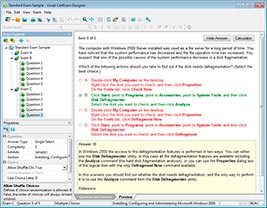
HOW TO OPEN VCE FILES
Use VCE Exam Simulator to open VCE files
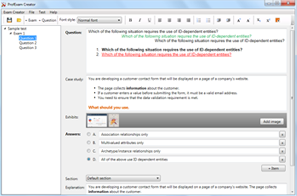
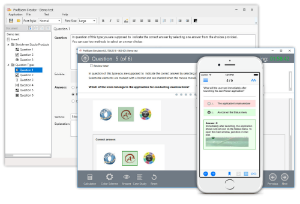
HOW TO OPEN VCEX FILES
Use ProfExam Simulator to open VCEX files
ProfExam at a 20% markdown
You have the opportunity to purchase ProfExam at a 20% reduced price
Get Now!