Download Microsoft Azure Administrator Certification Transition.AZ-102.ExamTopics.2026-10-15.28q.vcex
| Vendor: | Microsoft |
| Exam Code: | AZ-102 |
| Exam Name: | Microsoft Azure Administrator Certification Transition |
| Date: | Oct 15, 2026 |
| File Size: | 2 MB |
How to open VCEX files?
Files with VCEX extension can be opened by ProfExam Simulator.
Purchase
Coupon: TAURUSSIM_20OFF
Discount: 20%
Demo Questions
Question 1
You have an on-premises network that contains a Hyper-V host named Host1. Host1 runs Windows Server 2016 and hosts 10 virtual machines that run Windows Server 2016.
You plan to replicate the virtual machines to Azure by using Azure Site recovery.
You create a Recovery Services vault named ASR1 and Hyper-V site named Site1.
You need to add Host1 to ASR1.
What should you do?
- Download the installation file for the Azure Site Recovery Provider. Download the vault registration key. Install the Azure Site Recovery Provider on Host1 and register the server.
- Download the installation file for the Azure Site Recovery Provider. Download the storage account key. Install the Azure Site Recovery Provider on each virtual machine and register the virtual machines.
- Download the installation file for the Azure Site Recovery Provider. Download the vault registration key. Install the Azure Site Recovery Provider on each virtual machine and register the virtual machines.
- Download the installation file for the Azure Site Recovery Provider. Download the storage account key. Install the Azure Site Recovery Provider on Host1 and register the server.
Correct answer: A
Explanation:
Download the Vault registration key. You need this when you install the Provider. The key is valid for five days after you generate it.Install the Provider on each VMM server. You don't need to explicitly install anything on Hyper-V hosts.Incorrect Answers:B, D: Use the Vault Registration Key, not the storage account key.References:https://docs.microsoft.com/en-us/azure/site-recovery/migrate-tutorial-on-premises-azure Download the Vault registration key. You need this when you install the Provider. The key is valid for five days after you generate it.
Install the Provider on each VMM server. You don't need to explicitly install anything on Hyper-V hosts.
Incorrect Answers:
B, D: Use the Vault Registration Key, not the storage account key.
References:
https://docs.microsoft.com/en-us/azure/site-recovery/migrate-tutorial-on-premises-azure
Question 2
You have an Azure subscription named Subscription1.
You have a virtualization environment that contains the virtualization servers in the following table.

The virtual machines are configured as shown in the following table.
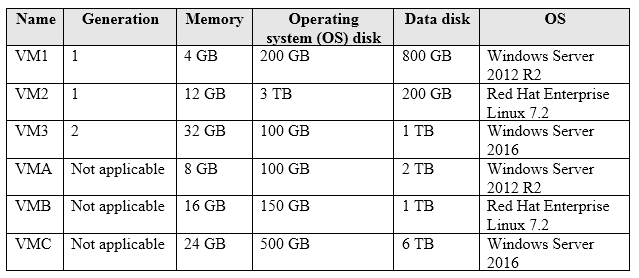
All the virtual machines use basic disks. VM1 is protected by using BitLocker Drive Encryption (BitLocker).
You plan to use Azure Site Recovery to migrate the virtual machines to Azure.
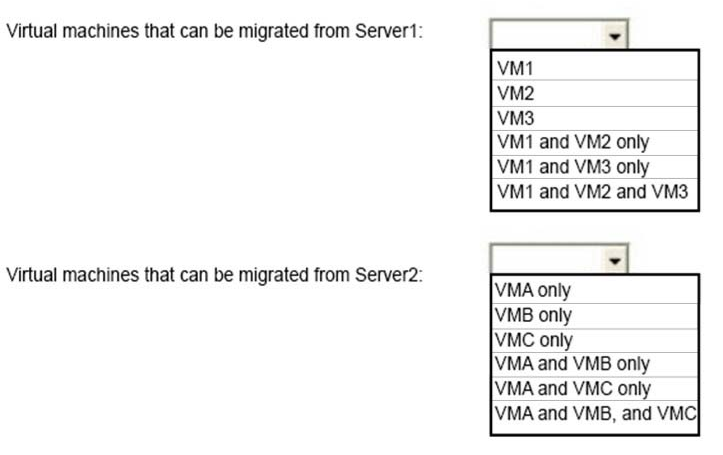
Which virtual machines can you migrate? To answer, select the appropriate options in the answer area.
NOTE: Each correct selection is worth one point.
Correct answer: To work with this question, an Exam Simulator is required.
Explanation:
Box 1: VM3 -Not VM1 as Bitlocker is not supported. BitLocker must be disabled before you enable replication for a VM.Not VM2 as maximum Operating system disk size for a generation VM is 2,048 GB.Box 2: VMA and VMB only -Not VMC as the max data disk size is 4,095 GBReferences:https://docs.microsoft.com/en-us/azure/site-recovery/hyper-v-azure-support-matrix https://docs.microsoft.com/en-us/azure/site-recovery/vmware-physical-azure-support-matrix#azure-vm-requirements Box 1: VM3 -
Not VM1 as Bitlocker is not supported. BitLocker must be disabled before you enable replication for a VM.
Not VM2 as maximum Operating system disk size for a generation VM is 2,048 GB.
Box 2: VMA and VMB only -
Not VMC as the max data disk size is 4,095 GB
References:
https://docs.microsoft.com/en-us/azure/site-recovery/hyper-v-azure-support-matrix https://docs.microsoft.com/en-us/azure/site-recovery/vmware-physical-azure-support-matrix#azure-vm-requirements
Question 3
You have an Azure Migrate project that has the following assessment properties:
Target location: East US -
- Storage redundancy: Locally redundant.
- Comfort factor: 2.0
- Performance history: 1 month
- Percentile utilization: 95th
- Pricing tier: Standard
- Offer: Pay as you go
You discover the following two virtual machines:
- A virtual machine named VM1 that runs Windows Server 2016 and has 10 CPU cores at 20 percent utilization
- A virtual machine named VM2 that runs Windows Server 2012 and has four CPU cores at 50 percent utilization
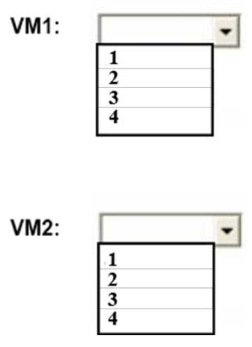
How many CPU cores will Azure Migrate recommend for each virtual machine? To answer, select the appropriate options in the answer area.
NOTE: Each correct selection is worth one point.
Correct answer: To work with this question, an Exam Simulator is required.
Explanation:
Box 2: 4 -4 *0.50 * 0.95* 2 = 3.8Note: The number of cores in the machines must be equal to or less than the maximum number of cores (128 cores) supported for an Azure VM.If performance history is available, Azure Migrate considers the utilized cores for comparison. If a comfort factor is specified in the assessment settings, the number of utilized cores is multiplied by the comfort factor.If there's no performance history, Azure Migrate uses the allocated cores, without applying the comfort factor.References:https://docs.microsoft.com/en-us/azure/migrate/concepts-assessment-calculation Box 2: 4 -
4 *0.50 * 0.95* 2 = 3.8
Note: The number of cores in the machines must be equal to or less than the maximum number of cores (128 cores) supported for an Azure VM.
If performance history is available, Azure Migrate considers the utilized cores for comparison. If a comfort factor is specified in the assessment settings, the number of utilized cores is multiplied by the comfort factor.
If there's no performance history, Azure Migrate uses the allocated cores, without applying the comfort factor.
References:
https://docs.microsoft.com/en-us/azure/migrate/concepts-assessment-calculation
Question 4
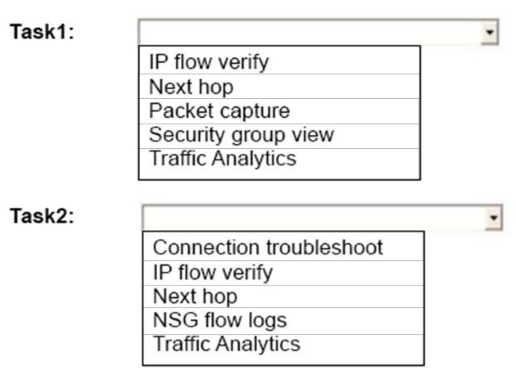
You plan to use Azure Network Watcher to perform the following tasks:
- Task1: Identify a security rule that prevents a network packet from reaching an Azure virtual machine.
- Task2: Validate outbound connectivity from an Azure virtual machine to an external host.
Which feature should you use for each task? To answer, select the appropriate options in the answer area.
NOTE: Each correct selection is worth one point.
Correct answer: To work with this question, an Exam Simulator is required.
Explanation:
Task 1: IP flow verify -IP flow verify checks if a packet is allowed or denied to or from a virtual machine. The information consists of direction, protocol, local IP, remote IP, local port, and remote port. If the packet is denied by a security group, the name of the rule that denied the packet is returned. While any source or destination IP can be chosen,IP flow verify helps administrators quickly diagnose connectivity issues from or to the internet and from or to the on-premises environment.Task 2:With the addition of Connection Troubleshoot, Network Watcher will see an incremental increase in its capabilities and ways for you to utilize it in your day to day operations. You can now, for example, check connectivity between source (VM) and destination (VM, URI, FQDN, IP Address).References:https://docs.microsoft.com/en-us/azure/network-watcher/network-watcher-ip-flow-verify-overview https://azure.microsoft.com/en-us/blog/network-watcher-connection-troubleshoot-now-generally-available/ Task 1: IP flow verify -
IP flow verify checks if a packet is allowed or denied to or from a virtual machine. The information consists of direction, protocol, local IP, remote IP, local port, and remote port. If the packet is denied by a security group, the name of the rule that denied the packet is returned. While any source or destination IP can be chosen,
IP flow verify helps administrators quickly diagnose connectivity issues from or to the internet and from or to the on-premises environment.
Task 2:
With the addition of Connection Troubleshoot, Network Watcher will see an incremental increase in its capabilities and ways for you to utilize it in your day to day operations. You can now, for example, check connectivity between source (VM) and destination (VM, URI, FQDN, IP Address).
References:
https://docs.microsoft.com/en-us/azure/network-watcher/network-watcher-ip-flow-verify-overview https://azure.microsoft.com/en-us/blog/network-watcher-connection-troubleshoot-now-generally-available/
Question 5
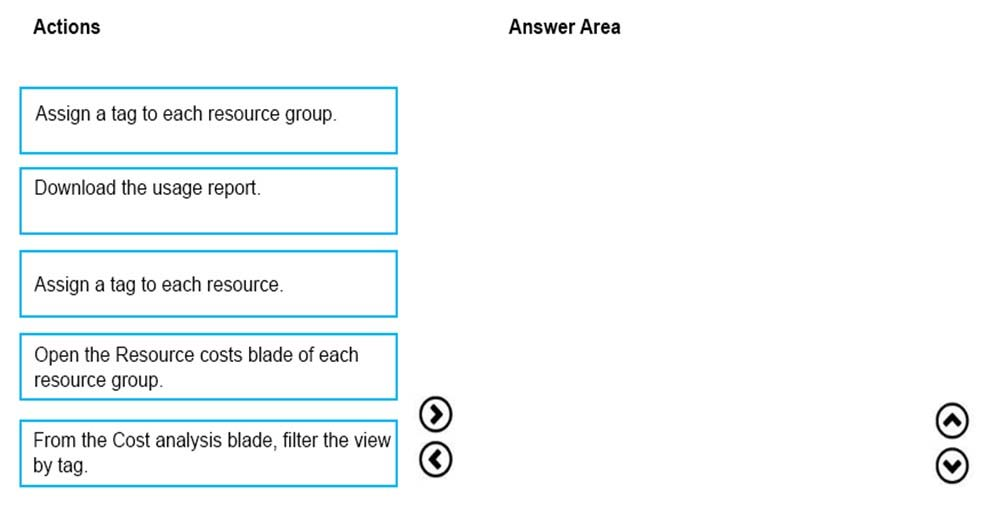
You have an Azure subscription that is used by four departments in your company. The subscription contains 10 resource groups. Each department uses resources in several resource groups.
You need to send a report to the finance department. The report must detail the costs for each department.
Which three actions should you perform is sequence? To answer, move the appropriate actions from the list of actions to the answer area and arrange them in the correct order.
Correct answer: To work with this question, an Exam Simulator is required.
Explanation:
Box 1: Assign a tag to each resource.You apply tags to your Azure resources giving metadata to logically organize them into a taxonomy. After you apply tags, you can retrieve all the resources in your subscription with that tag name and value. Each resource or resource group can have a maximum of 15 tag name/value pairs. Tags applied to the resource group are not inherited by the resources in that resource group.Box 2: From the Cost analysis blade, filter the view by tagAfter you get your services running, regularly check how much they're costing you. You can see the current spend and burn rate in Azure portal.1. Visit the Subscriptions blade in Azure portal and select a subscription.2. You should see the cost breakdown and burn rate in the popup blade.3. Click Cost analysis in the list to the left to see the cost breakdown by resource. Wait 24 hours after you add a service for the data to populate.4. You can filter by different properties like tags, resource group, and timespan. Click Apply to confirm the filters and Download if you want to export the view to aComma-Separated Values (.csv) file.Box 3: Download the usage reportReferences:https://docs.microsoft.com/en-us/azure/azure-resource-manager/resource-group-using-tags https://docs.microsoft.com/en-us/azure/billing/billing-getting-started Box 1: Assign a tag to each resource.
You apply tags to your Azure resources giving metadata to logically organize them into a taxonomy. After you apply tags, you can retrieve all the resources in your subscription with that tag name and value. Each resource or resource group can have a maximum of 15 tag name/value pairs. Tags applied to the resource group are not inherited by the resources in that resource group.
Box 2: From the Cost analysis blade, filter the view by tag
After you get your services running, regularly check how much they're costing you. You can see the current spend and burn rate in Azure portal.
1. Visit the Subscriptions blade in Azure portal and select a subscription.
2. You should see the cost breakdown and burn rate in the popup blade.
3. Click Cost analysis in the list to the left to see the cost breakdown by resource. Wait 24 hours after you add a service for the data to populate.
4. You can filter by different properties like tags, resource group, and timespan. Click Apply to confirm the filters and Download if you want to export the view to a
Comma-Separated Values (.csv) file.
Box 3: Download the usage report
References:
https://docs.microsoft.com/en-us/azure/azure-resource-manager/resource-group-using-tags https://docs.microsoft.com/en-us/azure/billing/billing-getting-started
Question 6
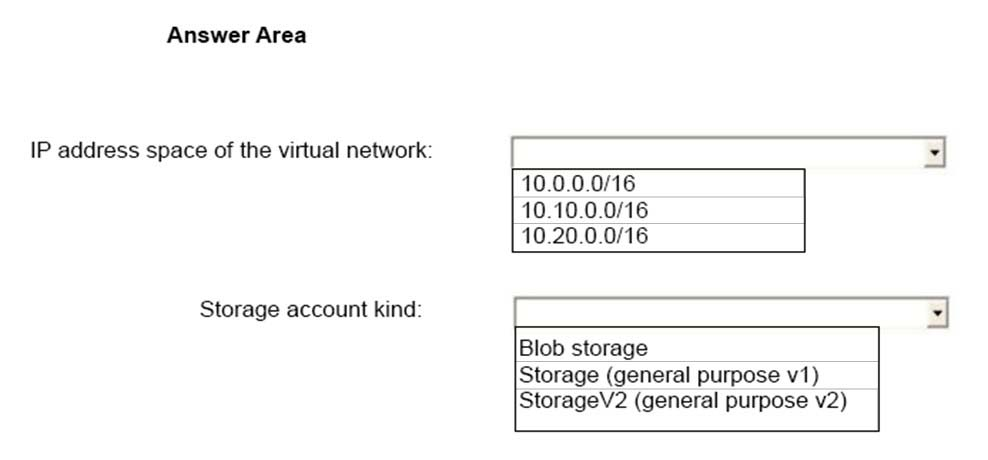
You need to provision the resources in Azure to support the virtual machine that will be migrated from the New York office.
What should you include in the solution? To answer, select the appropriate options in the answer area.
NOTE: Each correct selection is worth one point.
Correct answer: To work with this question, an Exam Simulator is required.
Explanation:
Box 1: 10.20.0.0/16 -Scenario: The New York office an IP address of 10.0.0.0/16. The Los Angeles office uses an IP address space of 10.10.0.0/16.Box 2: Storage (general purpose v1)Scenario: The New York office has a virtual machine named VM1 that has the vSphere console installed. Box 1: 10.20.0.0/16 -
Scenario: The New York office an IP address of 10.0.0.0/16. The Los Angeles office uses an IP address space of 10.10.0.0/16.
Box 2: Storage (general purpose v1)
Scenario: The New York office has a virtual machine named VM1 that has the vSphere console installed.
Question 7
You have an on-premises file server named Server1 that runs Windows Server 2016.
You have an Azure subscription that contains an Azure file share.
You deploy an Azure File Sync Storage Sync Service, and you create a sync group.
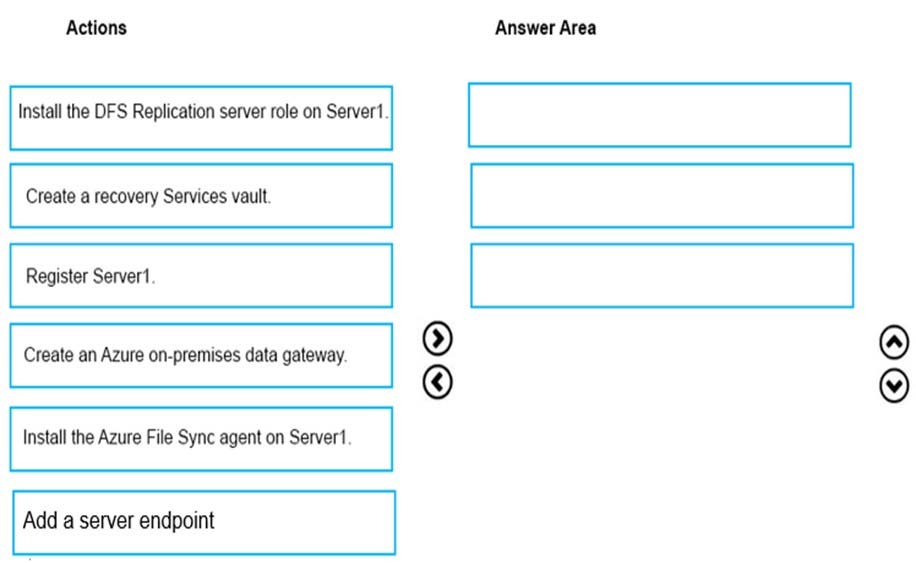
You need to synchronize files from Server1 to Azure.
Which three actions should you perform in sequence? To answer, move the appropriate actions from the list of actions to the answer area and arrange them in the correct order.
Correct answer: To work with this question, an Exam Simulator is required.
Explanation:
Step 1: Install the Azure File Sync agent on Server1The Azure File Sync agent is a downloadable package that enables Windows Server to be synced with an Azure file shareStep 2: Register Server1.Register Windows Server with Storage Sync ServiceRegistering your Windows Server with a Storage Sync Service establishes a trust relationship between your server (or cluster) and the Storage Sync Service.Step 3: Add a server endpoint -Create a sync group and a cloud endpoint.A sync group defines the sync topology for a set of files. Endpoints within a sync group are kept in sync with each other. A sync group must contain one cloud endpoint, which represents an Azure file share and one or more server endpoints. A server endpoint represents a path on registered server.References:https://docs.microsoft.com/en-us/azure/storage/files/storage-sync-files-deployment-guide Step 1: Install the Azure File Sync agent on Server1
The Azure File Sync agent is a downloadable package that enables Windows Server to be synced with an Azure file share
Step 2: Register Server1.
Register Windows Server with Storage Sync Service
Registering your Windows Server with a Storage Sync Service establishes a trust relationship between your server (or cluster) and the Storage Sync Service.
Step 3: Add a server endpoint -
Create a sync group and a cloud endpoint.
A sync group defines the sync topology for a set of files. Endpoints within a sync group are kept in sync with each other. A sync group must contain one cloud endpoint, which represents an Azure file share and one or more server endpoints. A server endpoint represents a path on registered server.
References:
https://docs.microsoft.com/en-us/azure/storage/files/storage-sync-files-deployment-guide
Question 8
You have two Azure Active Directory (Azure AD) tenants named contoso.com and fabrikam.com.
You have a Microsoft account that you use to sign in to both tenants.
You need to configure the default sign-in tenant for the Azure portal.
What should you do?
- From Azure Cloud Shell, run Set-AzureRmContext.
- From the Azure portal, change the directory.
- From the Azure portal, configure the portal settings.
- From Azure Cloud Shell, run Set-AzureRmSubscription.
Correct answer: A
Explanation:
The Set-AzureRmContext cmdlet sets authentication information for cmdlets that you run in the current session. The context includes tenant, subscription, and environment information.References:https://docs.microsoft.com/en-us/powershell/module/azurerm.profile/set-azurermcontext The Set-AzureRmContext cmdlet sets authentication information for cmdlets that you run in the current session. The context includes tenant, subscription, and environment information.
References:
https://docs.microsoft.com/en-us/powershell/module/azurerm.profile/set-azurermcontext
Question 9
You have an Azure subscription.
You enable multi-factor authentication for all users.
Some users report that the email applications on their mobile device cannot connect to their Microsoft Exchange Online mailbox. The users can access Exchange
Online by using a web browser and from Microsoft Outlook 2016 on their computer.
You need to ensure that the users can use the email applications on their mobile device.
What should you instruct the users to do?
- Create an app password.
- Enable self-service password reset.
- Reset the Azure Active Directory (Azure AD) password.
- Reinstall the Microsoft Authenticator app.
Correct answer: B
Explanation:
References:https://docs.microsoft.com/en-us/azure/active-directory/authentication/concept-sspr-howitworks References:
https://docs.microsoft.com/en-us/azure/active-directory/authentication/concept-sspr-howitworks
Question 10
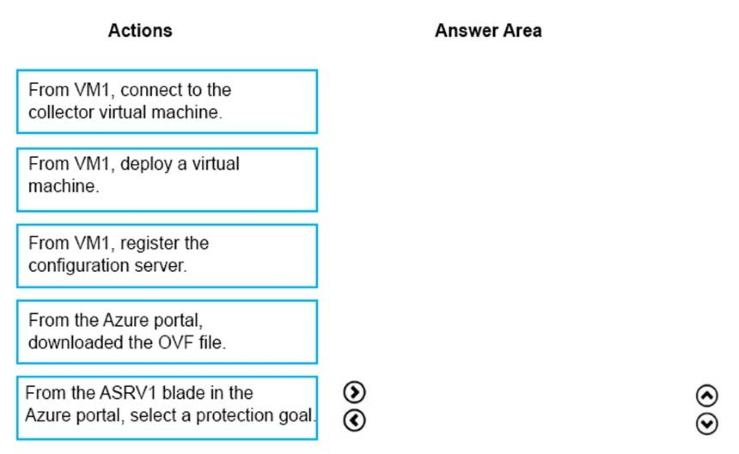
You need to prepare the New York office infrastructure for the migration of the on-premises virtual machines to Azure.
Which four actions you perform in sequence? To answer, move the appropriate actions from the list of actions to the answer area and arrange them in the correct order.
Correct answer: To work with this question, an Exam Simulator is required.
Explanation:
Box 1:1. From the Azure portal, download the OVF file.2. In the vCenter Server, import the Collector appliance as a virtual machine using the Deploy OVF Template wizard.3. In vSphere Client console, click File > Deploy OVF Template.4. In the Deploy OVF Template Wizard > Source, specify the location for the .ovf file.Box 2: From VM1, connect to the collector virtual machineAfter you've created the Collector virtual machine, connect to it and run the Collector.Box 3: From the ASRV1 blade in the Azure portal, select a protection goal.Box 4: From VM1, register the configuration server.Register the configuration server in the vaultScenario: The Azure infrastructure and the on-premises infrastructure and the on-premises infrastructure must be prepared for the migration of the VMware virtual machines to Azure.References:Migrate Your Virtual Machines to Microsoft Azure, Includes guidance for optional data migration, Proof of Concept guide, September 2017 https://azuremigrate.blob.core.windows.net/publicpreview/Azure%20Migrate%20-%20Preview%20User%20Guide.pdf Box 1:
1. From the Azure portal, download the OVF file.
2. In the vCenter Server, import the Collector appliance as a virtual machine using the Deploy OVF Template wizard.
3. In vSphere Client console, click File > Deploy OVF Template.
4. In the Deploy OVF Template Wizard > Source, specify the location for the .ovf file.
Box 2: From VM1, connect to the collector virtual machine
After you've created the Collector virtual machine, connect to it and run the Collector.
Box 3: From the ASRV1 blade in the Azure portal, select a protection goal.
Box 4: From VM1, register the configuration server.
Register the configuration server in the vault
Scenario: The Azure infrastructure and the on-premises infrastructure and the on-premises infrastructure must be prepared for the migration of the VMware virtual machines to Azure.
References:
Migrate Your Virtual Machines to Microsoft Azure, Includes guidance for optional data migration, Proof of Concept guide, September 2017 https://azuremigrate.blob.core.windows.net/publicpreview/Azure%20Migrate%20-%20Preview%20User%20Guide.pdf
HOW TO OPEN VCE FILES
Use VCE Exam Simulator to open VCE files
HOW TO OPEN VCEX FILES
Use ProfExam Simulator to open VCEX files
ProfExam at a 20% markdown
You have the opportunity to purchase ProfExam at a 20% reduced price
Get Now!